

Why “No Signal on TV HDMI” Is More Common Than You Think
No signal on TV HDMI is one of the most frustrating tech problems you can run into — especially when you just want to watch a movie, game, or give a presentation.
Here’s a quick answer to get you moving:
How to fix no signal on TV HDMI (quick steps):
- Check the input source — Press the Input/Source button on your remote and select the correct HDMI port (e.g., HDMI 1, HDMI 2)
- Reseat the cable — Unplug and firmly replug the HDMI cable at both ends
- Power cycle your devices — Unplug both the TV and source device for 60 seconds, then reconnect
- Try a different HDMI port — Swap to another port on your TV to rule out a bad port
- Try a different HDMI cable — Swap with a known working cable to rule out a faulty one
- Check your source device — Make sure it’s powered on, not in sleep mode, and outputting via HDMI
- Update firmware or drivers — Outdated software on your TV or PC can block the signal
If none of those work, keep reading — this guide covers every scenario in detail.
The problem shows up suddenly and in ways that feel random. You might be mid-movie on a Sony TV when the screen goes black. Or you plug in a new gaming console and get nothing. One user on a tech forum described it perfectly: they were playing PS4 on HDMI 3 the night before, and the next morning — no signal on any port, despite the TV clearly detecting that cables were plugged in.
That kind of situation is more common than most people realize. Research shows that 23% of HDMI problems come from loose cables, 19% are tied to software or app issues, and 15% are caused by hardware defects. So yes — it is often something simple. But not always.
I’m Faisal Shahzad, founder of SMP Web, and I’ve spent years covering hardware troubleshooting, including the many ways no signal on TV HDMI errors trip up everyday users and small business owners alike. Let’s walk through everything you need to know to fix it fast and stop it from coming back.
Understanding Why There is No Signal on TV HDMI Connections
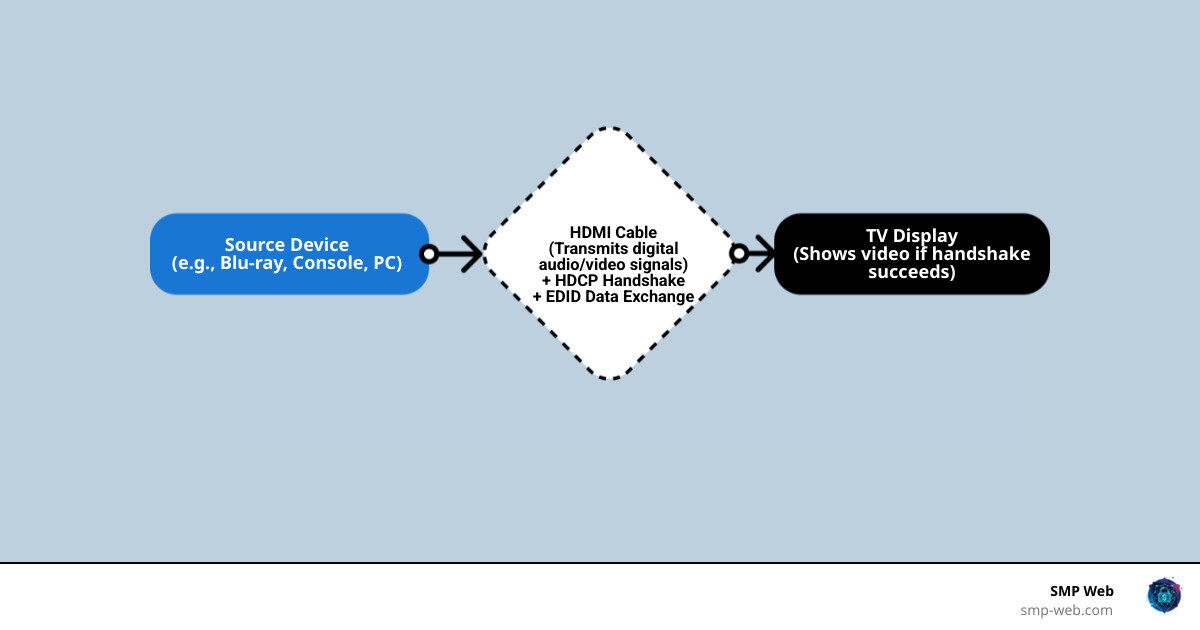
When your screen goes dark and displays those dreaded words, it essentially means the conversation between your TV and your source device (like a cable box or PlayStation) has stopped. To fix it, we first need to understand how that conversation works.
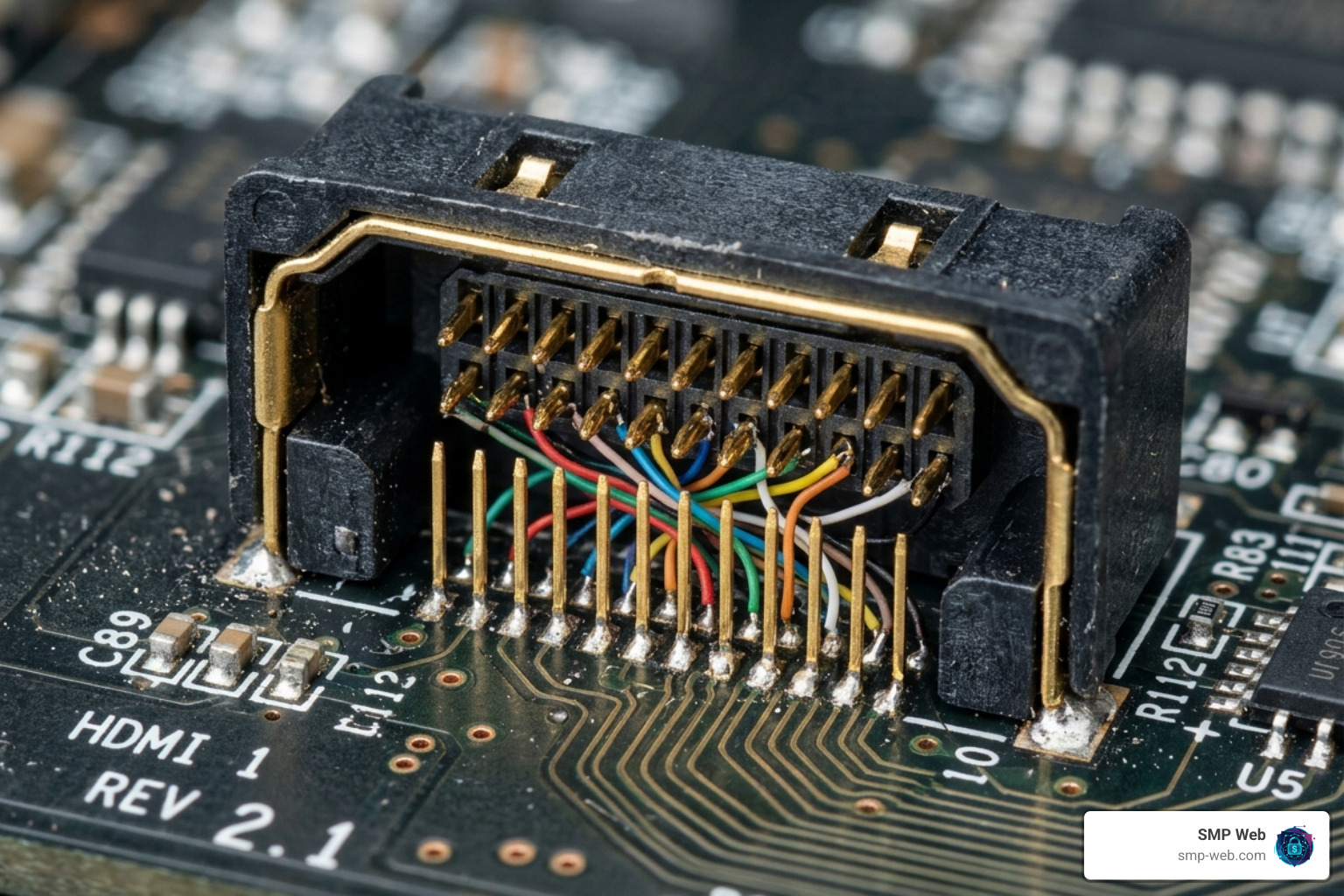
HDMI isn’t just a “dumb” pipe that carries video. It is a sophisticated digital interface. You can learn more about the basics in What is HDMI? The Complete Guide to High Definition Multimedia Interface. When you plug a cable in, two main things happen: the EDID exchange and the HDCP handshake.
EDID (Extended Display Identification Data) is like the TV handing over its resume to the source device. It says, “Hey, I’m a 4K Sony TV, and I can handle 60Hz.” If this data doesn’t get through, the source device won’t know what kind of signal to send, resulting in a no signal on tv hdmi error. Check out our deep dive on HDMI Explained for more on this data exchange.
Common reasons for this communication breakdown include:
- Loose or Dirty Cables: Even a slight wiggle can break the connection.
- Hardware Defects: Internal chips (ICs) can fail, or ports can physically break.
- Software Glitches: Sometimes the TV’s operating system just gets “confused.”
- Signal Degradation: If your cable is too long (over 10 meters) without a repeater, the signal might simply die out before it reaches the TV.
The Role of HDCP and Handshake Protocols
One of the most common “invisible” causes of signal loss is HDCP (High-bandwidth Digital Content Protection). This is an anti-piracy protocol designed to stop people from recording digital content. Think of it as a continuous “security check” between your devices.
If you are interested in the technical side, read about the High Definition Multimedia Interface standards. During an HDCP handshake, the source device asks the TV for its “security key.” If the TV doesn’t provide it, or if the cable is too low-quality to pass the key quickly, the source device will intentionally cut the video signal to prevent “piracy.” This often results in a black screen or a “no signal” message even though the devices are physically connected. Understanding What is HDMI involves realizing that it’s as much about security as it is about picture quality.
Common Statistics on HDMI Failure
We often think that a “No Signal” message means the TV is broken, but the data suggests otherwise. Based on industry research as of April 2026, here is why most people lose their signal:
- 23% Loose Cables: This is the #1 culprit. Constant plugging and unplugging, or even the weight of a heavy cable, can pull the connector just far enough out of the port to break the data pins while leaving the power pins connected.
- 19% Software/App Glitches: On modern smart TVs, the “External Input” service is an app itself. If that app crashes, the HDMI port stops “listening.”
- 15% Hardware Defects: This includes blown HDMI controller chips or cracked solder joints inside the port.
By understanding How HDMI Works, we can see that the majority of these issues are solvable without calling a repairman.
Step-by-Step Troubleshooting for Signal Loss
Now that we know the “why,” let’s get into the “how.” Follow these steps in order, starting with the easiest fixes.
1. Verify the Input Source
It sounds silly, but we’ve all been there. You might be looking at “HDMI 1” while your Xbox is actually plugged into “HDMI 2.” Use your remote to cycle through every single HDMI input. Sometimes, labels in the TV menu don’t match the physical numbers on the back.
2. Reseat and Clean the Connections
Don’t just push the cable in. Unplug it completely from both the TV and the source device. Blow a little compressed air into the ports to remove dust (which can interfere with the pins). Plug them back in firmly. If you want to dive deeper into port maintenance, see our guide on HDMI Troubleshooting.
3. The “Standard” Power Cycle
Electronics can get stuck in a bad state. Turn off your TV and your source device. Unplug both from the wall for at least 60 seconds. This allows the capacitors to drain and clears the temporary memory. For a visual walkthrough, you can watch this How to Fix HDMI No Signal on Any TV (Fast & Easy) – YouTube video.
4. Change the Startup Order
The HDMI handshake is sensitive to timing. Some devices prefer the TV to be on first, while others (like some older cable boxes) need to be powered on before the TV. Try both sequences to see if it triggers a successful handshake. This is a common fix for HDMI for TV setups.
Power Cycle vs. Factory Reset: Which do you need?
| Feature | Power Cycle | Factory Reset |
|---|---|---|
| Data Loss | None | Deletes all apps, settings, and logins |
| Complexity | Very Easy (Unplug and wait) | Moderate (Requires menu navigation) |
| What it fixes | Temporary glitches, handshake errors | Deep software corruption, OS bugs |
| When to use | Always try this first | Only as a last resort |
How to Test a Faulty Cable When There is No Signal on TV HDMI
If the steps above failed, the cable itself might be the “weak link.” HDMI cables don’t have moving parts, but they can suffer from internal wire breaks if they are bent too sharply.
- The Swap Test: This is the gold standard of testing. Take the HDMI cable from a device that is working (like a Blu-ray player) and use it on the device that isn’t. If the signal returns, your old cable is dead.
- Check the Specs: Not all cables are created equal. If you are trying to run a 4K 120Hz signal on an old cable from 2012, you will get a no signal on tv hdmi error. You need to match your HDMI Cable Types to your device.
- The Length Factor: If you are using a very long cable, HDMI vs VGA is a different beast; digital signals drop off sharply. Anything over 10 meters likely needs a powered booster or an active optical HDMI cable.
Performing a Deep Power Reset
Sometimes a standard unplugging isn’t enough. Many modern TVs stay in a “Standby” mode even when unplugged for a short time. To perform a “Deep Reset” (also known as a cold boot):
- Unplug the TV from the wall outlet.
- Disconnect all HDMI cables from the back of the TV.
- Locate the physical power button on the TV itself (usually on the bottom or back panel).
- Press and hold that button for 10 to 15 seconds. This forces the remaining electricity out of the capacitors.
- Wait another 2 minutes.
- Plug the HDMI cables back in, then the power cord.
- Turn the TV on.
This process forces the TV to re-initialize its HDMI Compatibility protocols from scratch, which often clears stubborn “No Signal” errors.
Brand-Specific Solutions and Advanced Fixes
Different TV brands have different “personalities” when it comes to HDMI. In 2026, many brands have built-in diagnostic tools to help us out.
Samsung: The HDMI Cable Test
Samsung TVs have a fantastic hidden feature. Go to Settings > Support > Device Care > Self Diagnosis > HDMI Troubleshooting. The TV will actually run a signal test on the cable to tell you if the wire is the problem or if it’s the port.
Sony: Clear the Input Cache
Sony TVs (especially Android and Google TV models) sometimes have a software bug where the “ExternalInputServices” app freezes.
- Go to Settings > Apps > See all apps > System apps.
- Find ExternalInputServices.
- Select Clear Data and Clear Cache.
- Restart the TV. This is a high-level fix recommended in the official Sony Support documentation.
Vizio: The Power Button Trick
Vizio TVs are notorious for “locking up” their HDMI boards. The deep power reset mentioned above (holding the physical power button for 15 seconds while unplugged) is the most effective fix for Vizio signal loss.
Resolving Software Glitches Causing No Signal on TV HDMI
If your TV is “Smart,” it needs updates. Manufacturers frequently release patches to fix handshake issues with new gaming consoles or streaming sticks. Always check for firmware updates in your TV’s system menu.
Furthermore, ensure your settings match your cable’s capabilities. If you have “HDMI Ultra HD Deep Color” (or similar) enabled on a port using an old cable, the signal will fail. You may need to toggle between HDMI 2.1, HDMI 2.0, or HDMI 1.4 modes in the TV settings to find the one that works with your specific device.
If you are using soundbars, pay close attention to HDMI ARC and HDMI eARC ports. These ports are designed to send audio out to a speaker, but they can sometimes cause “CEC” (Consumer Electronics Control) conflicts that turn off your video signal unexpectedly.
Troubleshooting PC to TV Connections
Connecting a computer to a TV is a common source of the no signal on tv hdmi error. Here are the specific PC fixes:
- The Win+P Shortcut: On Windows, press the Windows Key + P. This opens the projection menu. Ensure you have “Duplicate” or “Extend” selected. Often, the PC defaults to “PC Screen Only,” which sends no signal to the HDMI port.
- GPU vs. Motherboard: If you have a desktop PC with a dedicated graphics card, you must plug the HDMI cable into the graphics card ports (usually horizontal, lower down). Plugging into the motherboard HDMI port (near the USB ports) will usually result in no signal because the dedicated GPU disables the onboard video. See our guide on HDMI for PC for diagrams.
- Graphics Drivers: Outdated drivers are a huge issue for HDMI for Gaming. Update your NVIDIA, AMD, or Intel drivers to ensure the HDMI output is recognized.
- Disable Fast Startup: Windows “Fast Startup” is actually a hybrid hibernation. It can prevent the HDMI handshake from resetting properly. Disable it in Power Options > Choose what the power buttons do.
Frequently Asked Questions about HDMI Signal Loss
What does ‘No Signal’ actually mean?
It means the TV is “listening” to a specific port but isn’t hearing anything it recognizes. This could be because the source device is off, the cable is broken, or the source is sending a resolution (like 8K) that the TV can’t understand. Essentially, it’s an HDMI Compatibility mismatch.
Can a bad HDMI port be fixed?
Yes, but it’s rarely a DIY job. Inside the TV, all HDMI ports are often controlled by a single Integrated Circuit (IC). If one port is physically loose, a technician can sometimes resolder it. However, if the IC is blown (common after a power surge or lightning strike), the entire mainboard usually needs replacement. If one port works but others don’t, just use a high-quality HDMI switcher to expand the working port.
Why does my signal drop out during movies?
This is almost always an HDCP error or a bandwidth issue. If the signal drops specifically during high-action scenes or when 4K HDR kicks in, your cable likely doesn’t have the “speed” to handle the data. Upgrading to a “Certified Premium” or “Ultra High Speed” cable usually fixes this.
Conclusion
Dealing with a no signal on tv hdmi message is a rite of passage in the modern digital age. Most of the time, the fix is as simple as a 60-second power cycle or a firmer tug on the cable. By staying calm and working through the steps — from checking the input to performing a deep reset — you can save yourself the cost of a repair technician.
Remember to keep your ports clean, avoid sharp bends in your cables, and keep your TV’s firmware updated. At SMP Web, we believe technology should work for you, not against you. If you’ve managed to clear that black screen, why not dive deeper into your setup? Explore more hardware guides on our site to optimize your home entertainment and PC performance.
Happy viewing!
