
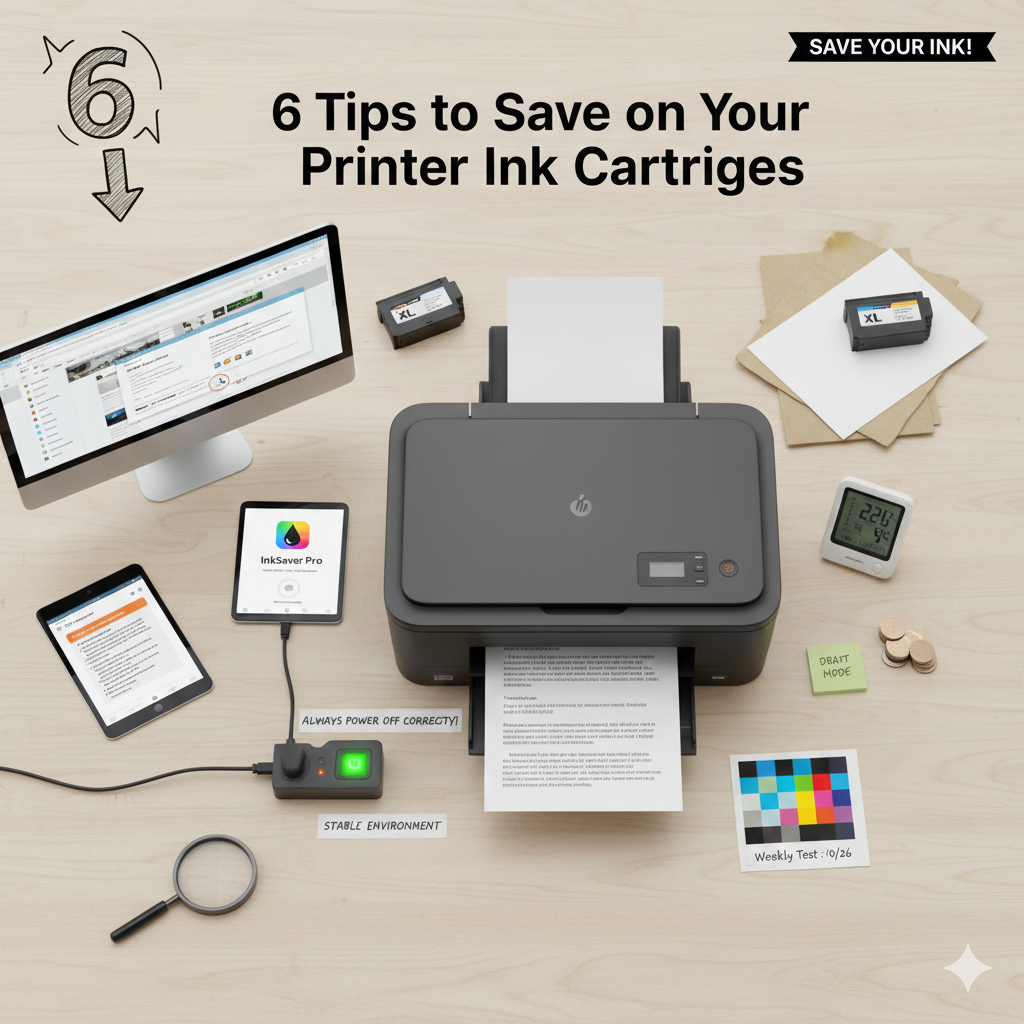
Printer Ink Expenses – The Hidden Cost of Printing
Printer Ink Expenses – The initial purchase of a printer is generally affordable, a marketing strategy known as the “razor and blade” model. The real long-term expense comes from continuously replacing Printer Ink Cartridges. It often feels like you replace the ink shortly after you start using it. However, with minor adjustments to your workflow and printer management, you can transform these expensive consumables into long-lasting assets.
Here are six powerful strategies to help you save on ink and extend the life of your cartridges:
1. Optimize Your Output: Print Only What is Necessary
The single biggest source of ink waste is printing documents that are bloated with extraneous elements. A typical webpage, for instance, includes large banner ads, heavy graphics, navigational menus, and white space—all of which consume ink but are irrelevant to the core information you need.
Actionable Steps for Economical Printing:
-
Select and Copy: If you only need a specific paragraph or section from a web page, highlight the text, copy it, and paste it into a blank word processing document (like Word or Google Docs). This eliminates all unnecessary graphics, logos, and advertisements.
-
Use ‘Reader View’: Many modern web browsers offer a “Reader View” or “Distill Page” function that strips away non-essential clutter, leaving only the clean text and core images, making the page far more print-friendly.
-
Utilize Printer-Friendly Versions: Look for a “Print Version” or “Print This Page” button on websites, as these links often generate a simplified, text-only layout designed to conserve resources.
-
Eliminate Backgrounds and Graphics: Before printing a document, go into your application’s settings and look for options to disable background printing or hide images if only the text is required. Text alone consumes far less ink than a combination of text and full-color graphics.
2. Leverage Draft Mode and Ink-Saving Fonts
Not every document needs to be presentation-quality. Most printers come with various quality settings, and by adjusting these, you can control the density of the ink applied to the paper.
Changing Your Print Settings:
-
Use “Draft” or “Economy” Mode: For internal documents, rough drafts, or anything that just needs to be legible, always select your printer’s “Draft” or “Fast Economy” mode. This setting deposits less ink per character, speeding up the print job while offering substantial savings. You can always switch back to “Normal” or “Best” quality for final reports.
-
Switch to an Ink-Saving Font: Believe it or not, the font you choose impacts ink consumption. Fonts like Garamond, Century Gothic, and Courier are often cited as being more economical than heavy fonts like Arial or Times New Roman because they use thinner lines or have more efficient character shapes. While the difference is small for a single page, the savings accumulate over hundreds of printouts.
3. Take Advantage of the Print Preview Function
Before you click the final “Print” button and commit expensive ink to paper, you must confirm that the output will match your expectations. Unexpected issues—like a missing column in a spreadsheet, a crucial page break occurring in the wrong spot, or a web element overlapping your text—can instantly force a wasted reprint.
-
Verify Layout: The Print Preview function, available in nearly all modern software applications and printer drivers, provides an exact rendering of what the printed page will look like.
-
Catch Errors: This is the ideal stage to catch formatting mistakes, ensure headers and footers are placed correctly, and confirm that all necessary information is visible and properly aligned, preventing costly errors and wasted prints.
4. Implement Smart Printer Maintenance and Power Management
How you handle the printer when it’s not in use is just as important as how you use it while printing. Improper shutdown procedures can lead to cartridges drying out or print heads clogging, necessitating wasteful maintenance cycles.
-
Proper Shutdown is Critical: Never unplug or switch off your printer directly at the wall or surge protector while it’s still powered on. When you use the printer’s power button, the device automatically cycles the print heads into their protected docking station. This seals the nozzles off from the air, preventing the exposed ink from drying out and blocking the tiny jets.
-
The Weekly Test Print: If you print infrequently, ink can dry out in the microscopic nozzles of the print head, leading to streaks and poor quality. To prevent this, run a small test print—even just a simple color check page—once a week. This keeps the ink flowing and ensures the nozzles remain clear, maximizing the useful life of the cartridge.
5. Explore Third-Party and Refurbished Cartridge Options
The most direct way to reduce the cost of ink is to look beyond the costly name-brand cartridges. The market is full of reliable, more affordable alternatives.
-
Reputable Third-Party Brands: Many companies manufacture high-quality, generic replacement cartridges that are compatible with your printer model. These can cost 30% to 70% less than the Original Equipment Manufacturer (OEM) cartridges. Always check reviews to ensure the brand has a track record of reliability and good compatibility.
-
Certified Remanufactured Cartridges: These are genuine OEM cartridges that have been professionally collected, cleaned, refilled with high-quality ink, and tested. They offer an environmentally friendly choice and often come with performance guarantees from the retailer.
-
High-Yield Options: When buying replacement ink, opt for XL or High-Yield cartridges. While the initial purchase price is higher, they contain significantly more ink, resulting in a much lower cost per printed page over time.
6. Maintain a Stable Environment for Your Printer
The consistency of your printer’s physical environment plays a crucial role in preventing ink-related problems. Printer ink is a liquid that is highly sensitive to temperature fluctuations.
-
Avoid Extremes: Do not place your printer near sources of intense heat (like a radiator or direct sunlight from a window) or excessive cold (like an unheated garage or a drafty window). Extreme heat can cause the ink to dry out or vaporize quickly within the cartridge and nozzles.
-
Control Humidity: Excessive humidity can cause paper to absorb moisture, leading to smearing and requiring more ink to achieve density, while extremely dry air can hasten the drying of ink in the print heads. A stable, normal room temperature and average humidity are ideal for long-term Printer Ink Cartridges performance.
